User Interface
Select a sensor
The device panel lists discovered sensors:
| Icon | Status | Meaning | Recommended action |
|---|---|---|---|
 | Online | Device connection is healthy | Select the sensor and view its data |
 | Offline | The device is disconnected | Check the connection and rescan |
 | Error | Configuration or initialization failed | Hover over the status icon for details |
After plugging or unplugging a sensor, select Rescan before choosing it.
Multiple sensors can be connected, but inference load and USB bandwidth grow with device count.

Perception modes
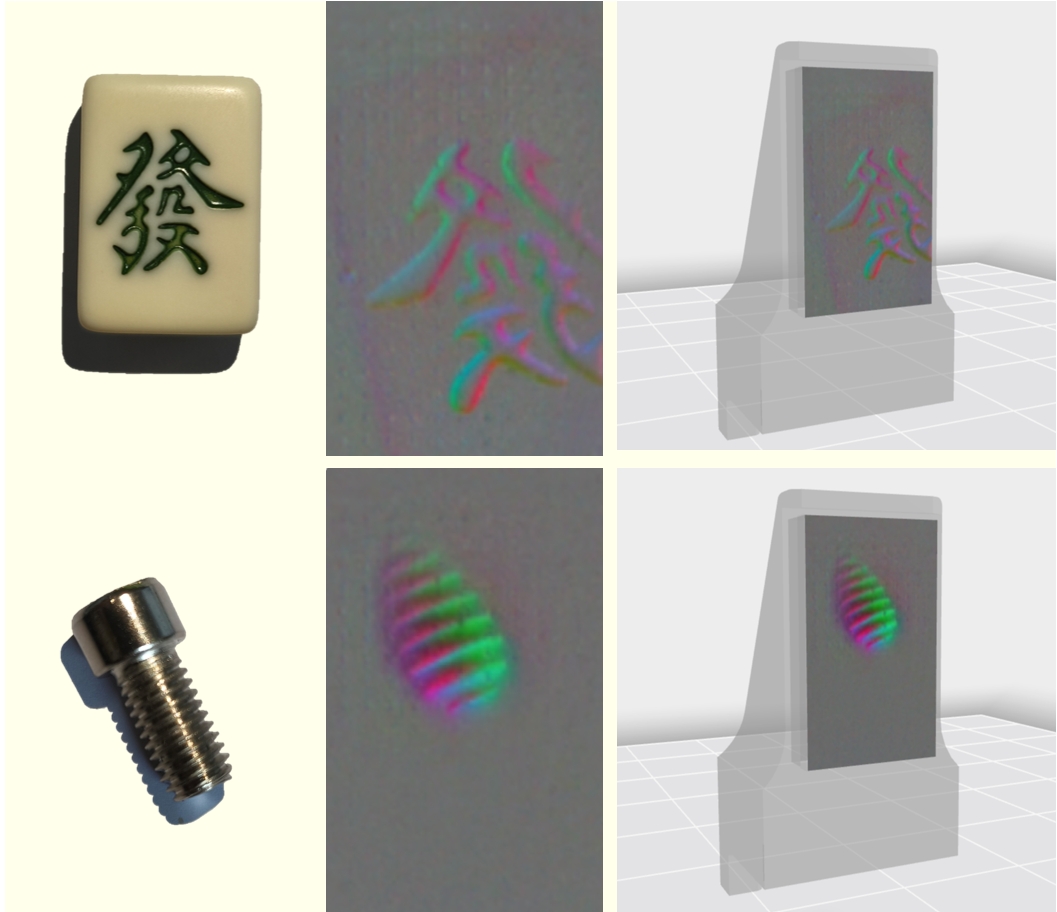
Default viewDisplays the tactile image and standard multimodal information.
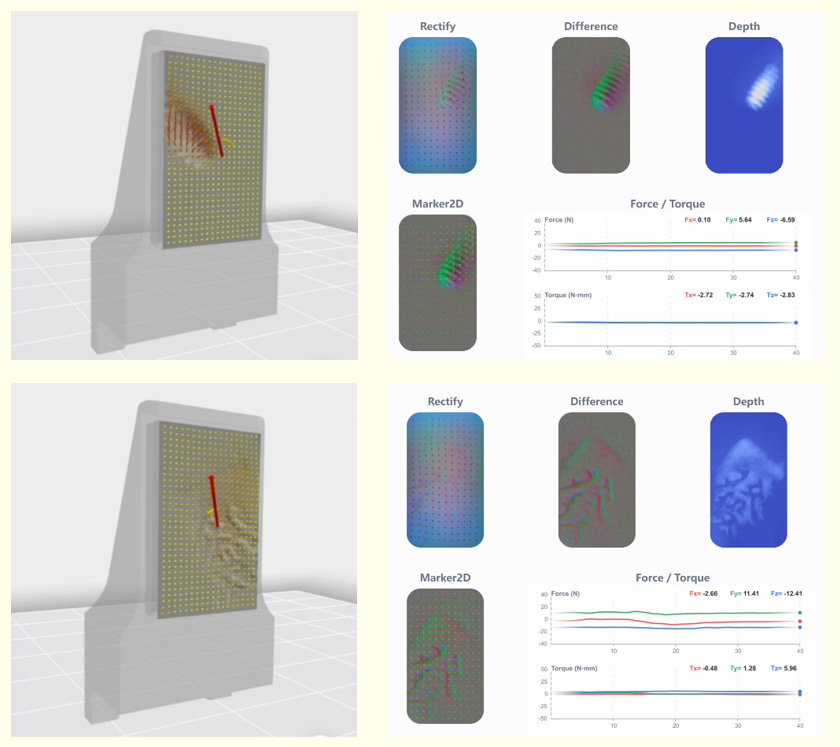
Contact-force viewDisplays force arrows and surface deformation; direction and length represent force direction and magnitude.
If imagery is distorted or stale, remove all contact and click Calibrate.
Toolbar
Use Settings to switch the theme and language; Help to open the documentation and FAQs; About to view version information; and Minimize, Maximize, and Exit to control the application window.
